| 8MS User Guide |
Parameter Administration |
Main Help Page |
This function allows you to view and set system parameters.
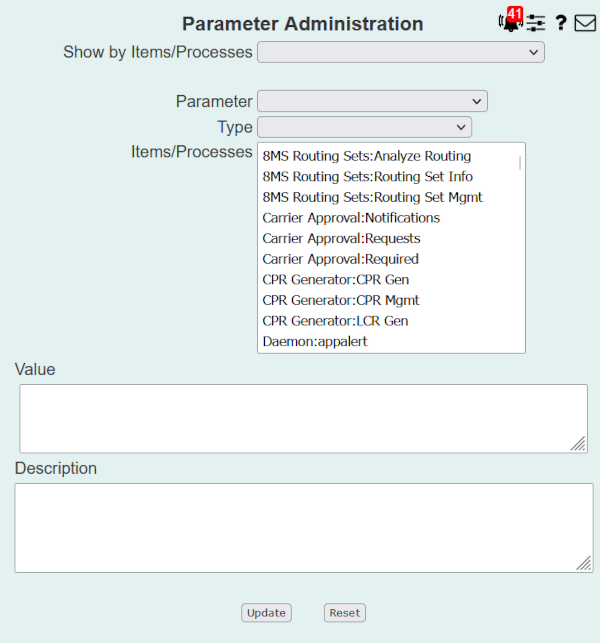
In the menu frame, select the Params link located in the System Admin section of the menu. The following will appear in the workspace area:
Many parameters are used by particular user interface screens or system processes. To make management of parameters easier, many of the parameters are associated with screens and/or processes. This makes it easier to see what screens or processes use a parameter and allows filtering of parameters by a particular screen or process.
The Show by Items/Processes drop-down list contains the names of all user interface screens and system processes. System processes are identified by the prefix Daemon:. User interface screens are identified by a prefix of the menu under which the screens exist. For example, the Record Management screen appears in this drop-down list as Number Admin:Record Mgmt.
The Parameter drop-down list is populated with all possible 8MS parameters. This list may be filtered by selecting any item from the Show by Items/Processes drop-down list. When an item from Show by Items/Processes is selected, then Parameter only shows those parameters associated with the selected screen or process.
Every parameter also has a type associated with it. The Type drop-down list contains all possible type values. The list of possible values, a description, and where this type can be viewed and set is shown below.
| Type | Description | Where to Set |
|---|---|---|
| System | Used by one or more system processes. | This page. |
| Company Preference | Used by one or more screens or processes and affects all users in a company. If a company value has not been set then it defaults to the system value. |
Company Preferences |
| User Preference | Used by one or more screens and affects a specific user. If a user has not set this preference then it defaults to the system value. | User Preferences |
| Company/User Preference | Used by one or more screens. If a user has not set this preference then it uses the company value. If a company value has not been set then it defaults to the system value. |
Company Preferences
User Preferences |
When a parameter is selected from the Parameter drop-down list, the current Type, Items/Processes, Value and Description are shown. Description is a read-only value; all the other 3 values may be modified.
To modify a parameter, select the parameter name from the Parameter list.
Update any of Type, Items/Processes or Value.
Now select the
 button. If the update is successful then all fields will be cleared.